On this page
How Postman led me to create my own API client called the Thunder Client extension for VS Code.
I run my own project, localmint.com, where I regularly update location data, which involves working with many crawlers and APIs. For the past few years, I’ve been using Postman to test APIs. However, recently, the Postman desktop client has become slow to load with each update, and its UI has become increasingly confusing.
So I started looking for other clients, which I found require multiple clicks to make a simple API request and have complex UIs. Then I searched the Visual Studio Code extension gallery and found the REST Client extension, which is popular but not a GUI based client. So I finally decided to create my own API client.
Since I use Visual Studio Code regularly for development, I decided to create an extension instead of separate software to download, aiming to avoid context switching. Additionally, millions of users already use VS Code, and it works cross-platform. I set the following design targets for the new extension:
Extension design goals
- Lightweight API client
- Simple, clean and easy to use UI
- Local storage
- Support for VS Code themes
- Collections and environment variables
- Scriptless testing
Development
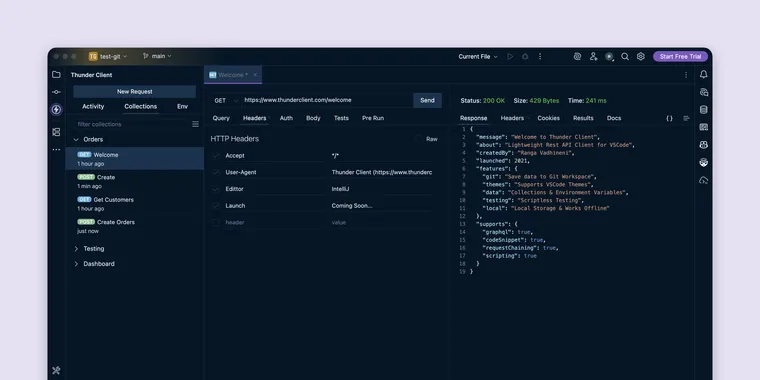
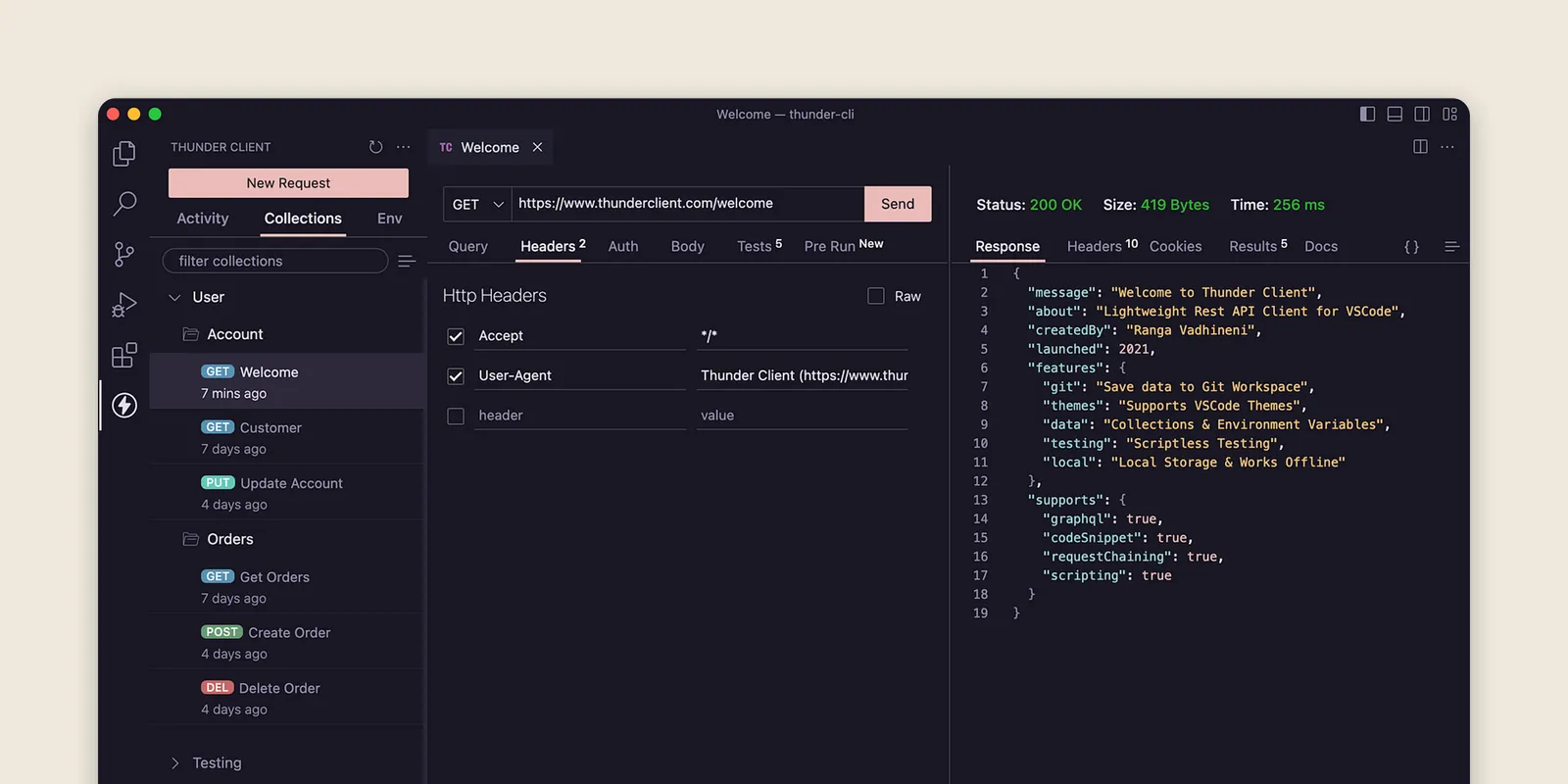
I started with a couple of days of initial research on how to use the VS Code API to develop an extension, and then started developing the software. I was finally able to complete the development of the extension with the above target functionality. Below is a screenshot of the extension.
Scriptless testing
I noticed that we often have to write a lot of boilerplate code in Postman and other clients just to perform basic tests, such as checking if the status code is 200. To simplify this, I implemented a GUI based testing solution that allows you to perform most standard tests easily by selecting options from dropdowns, without any need for scripting knowledge. Below is a screenshot of the tests.
- (Update) Set environment variable from the API response in the Tests tab is possible now. See Set Env Variable in the docs for details.
The 5 test cases in the above screenshot took only a few seconds to write. That’s how easy it is to do testing in Thunder Client.
Doing the same tests in scripting takes a lot of time, and knowledge of Chai scripting is needed. Below is the code needed to do the same tests in Postman. I had to do a Google search to find the syntax for some tests.
// status code testpm.test("Status code is 200", function () {  pm.response.to.have.status(200);});
// property checkpm.test("Property message contains Thunder Client", function () {  var jsonData = pm.response.json();  pm.expect(jsonData.message).to.contains("Thunder Client");});
// response content-type checkpm.test("Content-Type contains application/json", function () {  pm.response.to.be.header("Content-Type", "application/json");});
Script based tests are still useful in advanced scenarios, but for standard tests they’re too much overkill.
Extension links
- VS Code extension: Download extension
- Website: www.thunderclient.com
Feedback
Please download the extension and let me know what you like or any feedback. To report any bugs or feature requests, visit the GitHub support page.
Try it on your own API
Thunder Client is a lightweight API client that lives inside VS Code and JetBrains IDEs.