On this page
In 2021, we launched the Thunder Client extension for VS Code. It was a game changer: the first GUI-based API client inside VS Code. Today we’re launching Thunder Client CLI, with many innovative features for API testing.
Key features
- A simple, easy-to-use CLI tool
- Seamless integration with the Thunder Client extension
- Run requests and collections, and view test results
- Syntax highlighting and VS Code themes
- CI/CD integration
Requirements
- Node 18 or higher
- A Thunder Client subscription
Installation
- Update the extension to the latest version.
- Install the CLI:
npm i -g @thunderclient/cli - Note: run the commands from the root of your project.
VS Code settings
- If you use Thunder Client settings in the extension, set them to workspace scope so the CLI can read them.
- If you use a multi-root workspace, set them in the folder tab.
Run requests
The CLI and the extension work together seamlessly, so you can access your request data from the terminal without any extra configuration.
- To run a request, use
tc 'requestNameOrId'. You can pass the request’s id, its name or part of its name.
As the image above shows, running a request from the CLI is easy. The output is neatly formatted, with the status, the response with syntax highlighting in your VS Code theme, and the test results.
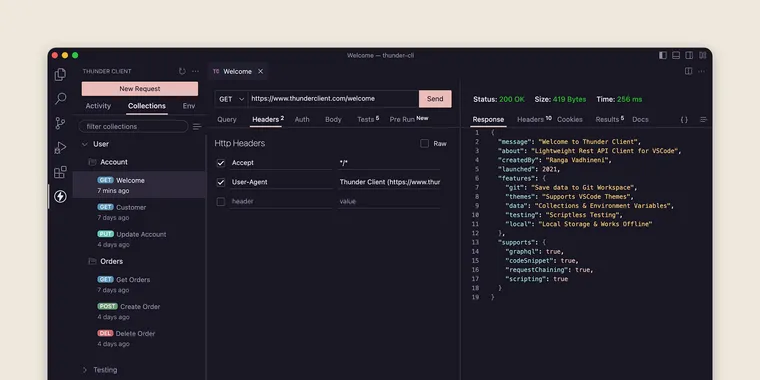
Running the same request from the UI takes several steps:
- Open the sidebar.
- Click the Collections tab.
- Open the User collection and the Account folder.
- Open the Welcome request.
- Send the request.
Output log
By default, running a request shows the status, response and test results. To choose what’s shown, use the --log argument.
- Log options for a request: 0=All Data, 1=ReqHeaders, 2=ReqBody, 6=ResHeaders, 7=ResBody, 8=Tests
- Example:
tc 'welcome' --log 1,2,7shows the request headers, request body and response body.
VS Code themes in the terminal
For the first time, VS Code themes come to the terminal.
Run a collection
The collection runner runs every request in a collection and shows the output in a clean format, similar to the extension UI.
tc --col 'colNameOrId'runs the requests in the collection
Run all collections
tc --col allruns all collectionstc --col all --skip "ColA,ColB"runs all collections except ColA and ColB
Run multiple collections
tc --col "colNameOrId1,colNameOrId2"runs several collections
Run a collection in parallel
tc --col 'colNameOrId' --concurrent 5runs 5 requests at a time, in parallel
Run a folder
tc --fol 'folNameOrId'runs the requests in the folder
Run selected requests
tc --reqlist "nameOrId1,nameOrId2,nameOrId3"runs only the selected requests from the collection
Environment
By default, a collection or request runs with the active environment. To use a different environment, add the --env argument.
- Example:
tc --col 'colNameOrId' --env 'Staging'
Reports
The CLI can generate reports in XML, HTML, JSON and CSV formats.
tc --col 'User' --report xml,htmlruns all the requests and saves the reports in the thunder-reports folder.
List collections or requests
tc listlists all collections.
tc list userlists the requests in the User collection.
List environments
tc list envlists all environments.
CI/CD integration
You can use Thunder Client CLI on a build server to run collections and save reports in XML, HTML, JSON and CSV formats.
- VS Code settings: if you use any Thunder Client settings in VS Code, set their scope to workspace so they’re saved in the workspace folder.
- Git Sync: the collection runner works on a build server only when the Git Sync feature is enabled.
tc --col "ColNameOrId" --report "xml,html"runs all the requests and saves the reports in the thunder-reports folder.
GitHub Actions
- Use the sample YAML file to integrate with GitHub Actions or other build pipelines.
Workspace location
- [Optional] The CLI uses the current working directory as the workspace. If your data is in a different folder, pass its full path with
--ws 'fullpathToGitWorkspace'.
Stop the collection when a test fails
- [Optional] To stop running the remaining requests in a collection when a test fails, use the
--stop-on-failargument.
Help screen
Most CLI help screens are plain and hard to read, so I custom-designed ours to be colorful and easy to follow.
Debug information
If the CLI has trouble reading your data or your Git Sync settings, run the debug command for details.
- Run
tc --debug. - It shows the directory path the CLI is reading data from, and the Git Sync setting values it’s using.
Feedback
We’d love to hear what you think of the new CLI. Try it out, and let us know on GitHub how we can make it better.
- Website: www.thunderclient.com
- Support: thunder-client-support
Try it on your own API
Thunder Client is a lightweight API client that lives inside VS Code and JetBrains IDEs.